
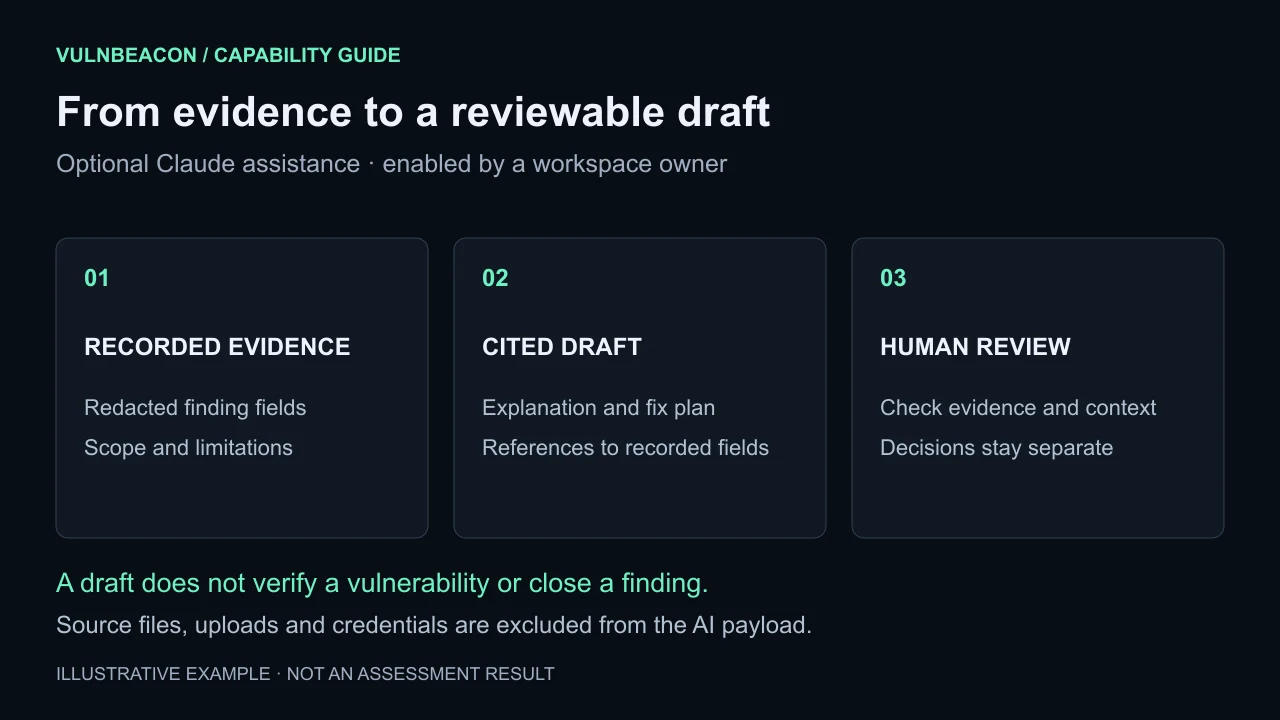
Move from findings to a clearer explanation
AI assistance works with the evidence an assessment has already recorded. A workspace owner enables it; analysts and owners can then request drafts within the workspace's configured usage limit.
- Finding explanations and fix plans
- Draft a summary of the finding, what its evidence shows, proposed remediation steps, verification steps and questions that still need investigation.
- Executive-summary drafts
- Prepare a headline, key points, coverage gaps and next actions from the run's findings and limitations. These remain labeled drafts for review in the workspace.
- Recorded references
- Retained evidence points reference fields or finding IDs supplied to the model. Points without valid references are removed. A reference helps trace a statement; it does not establish that the statement is correct.
Owner-controlled, with a clear data boundary
AI assistance is off by default. A workspace owner must acknowledge the data transfer before enabling Anthropic (Claude) as a processor. A configured deployment and available usage allowance are also required.
A draft request sends selected recorded finding fields, redacted evidence and relevant assessment context, or a run summary containing findings, coverage counts and limitations. Source files, uploaded archives, credentials, raw response bodies and synthetic test markers are not included in the request payload.
These are external AI requests. Your team can review the disclosed processor and choose whether this workflow fits its data-handling requirements.
Keep draft text separate from finding decisions
Each stored draft records who requested it, when it was created, the responding model and request provenance. Drafts belong to the workspace and run; deleting a run also removes its drafts.
Generating a draft does not change the finding's severity, evidence status, coverage or retest outcome. An AI suggestion does not verify a vulnerability or a fix. Review it against the original evidence before acting.
- Run and review an assessment. Start with recorded findings and their coverage limits.
- Request a draft. Choose a finding explanation and fix plan, or a run-level executive summary.
- Check its references and open questions. Compare the draft with the original evidence and your application context.
- Make the decision. Use the existing remediation and linked-retest workflow to document engineering action and verification.
AI-assistance questions
Does AI run scans or exploit targets?
No. This feature drafts text from recorded evidence. Scan scope and execution remain part of the assessment workflow.
Can I use VulnBeacon with AI switched off?
Yes. Scanning, reports, evidence review and remediation operate independently of AI assistance.
Are drafts automatically added to exported reports?
Drafts are stored separately with their run and shown for review in the workspace. They do not rewrite the original assessment or its exported report.
What if the model refuses or returns an unusable response?
The request reports the failure and stores no draft. A draft with no valid cited evidence points is also discarded.